Event Control
Event Control is the live log for the show. It is built for speed first: capture the issue, keep the stack moving, then add detail as the situation develops.
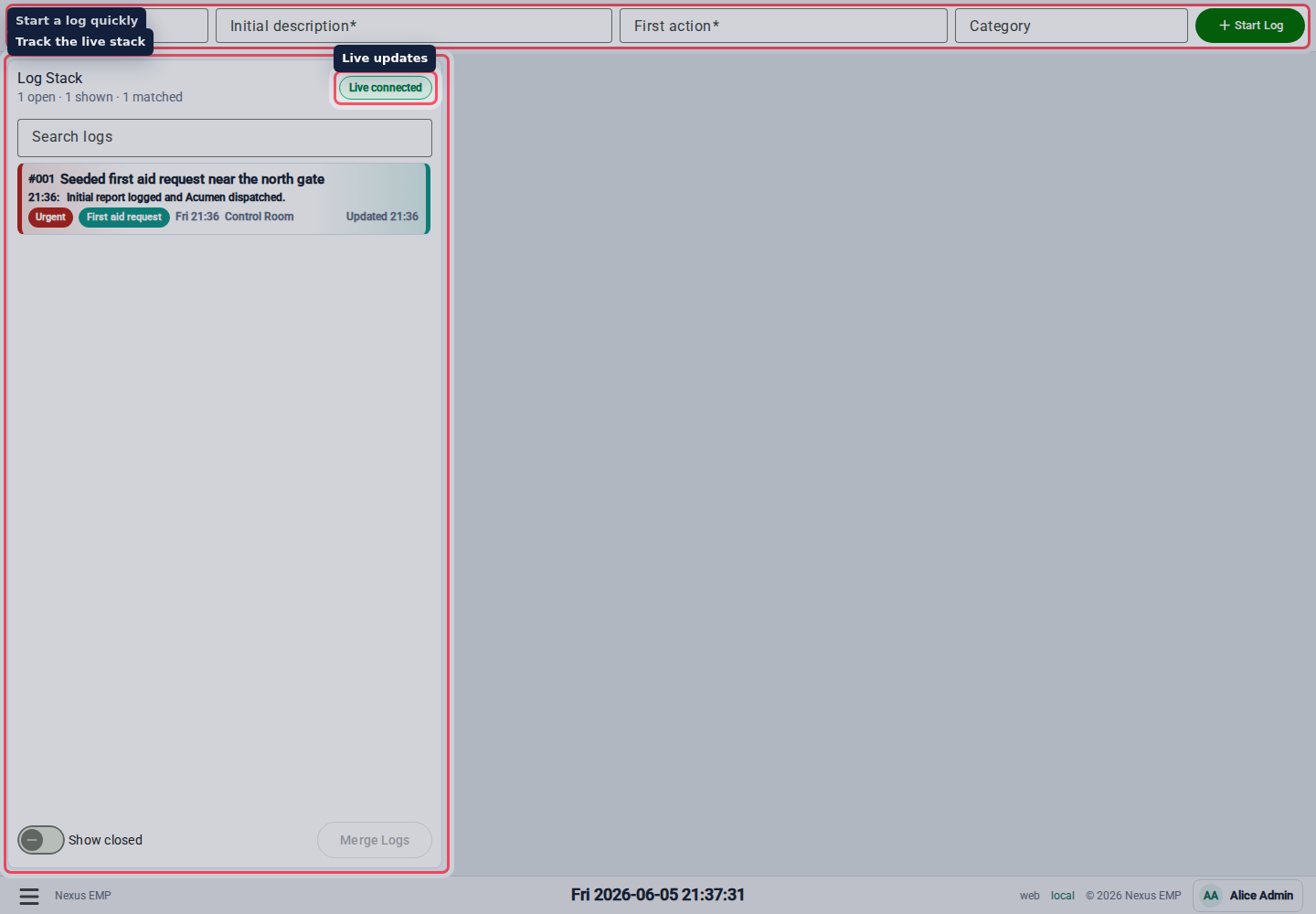
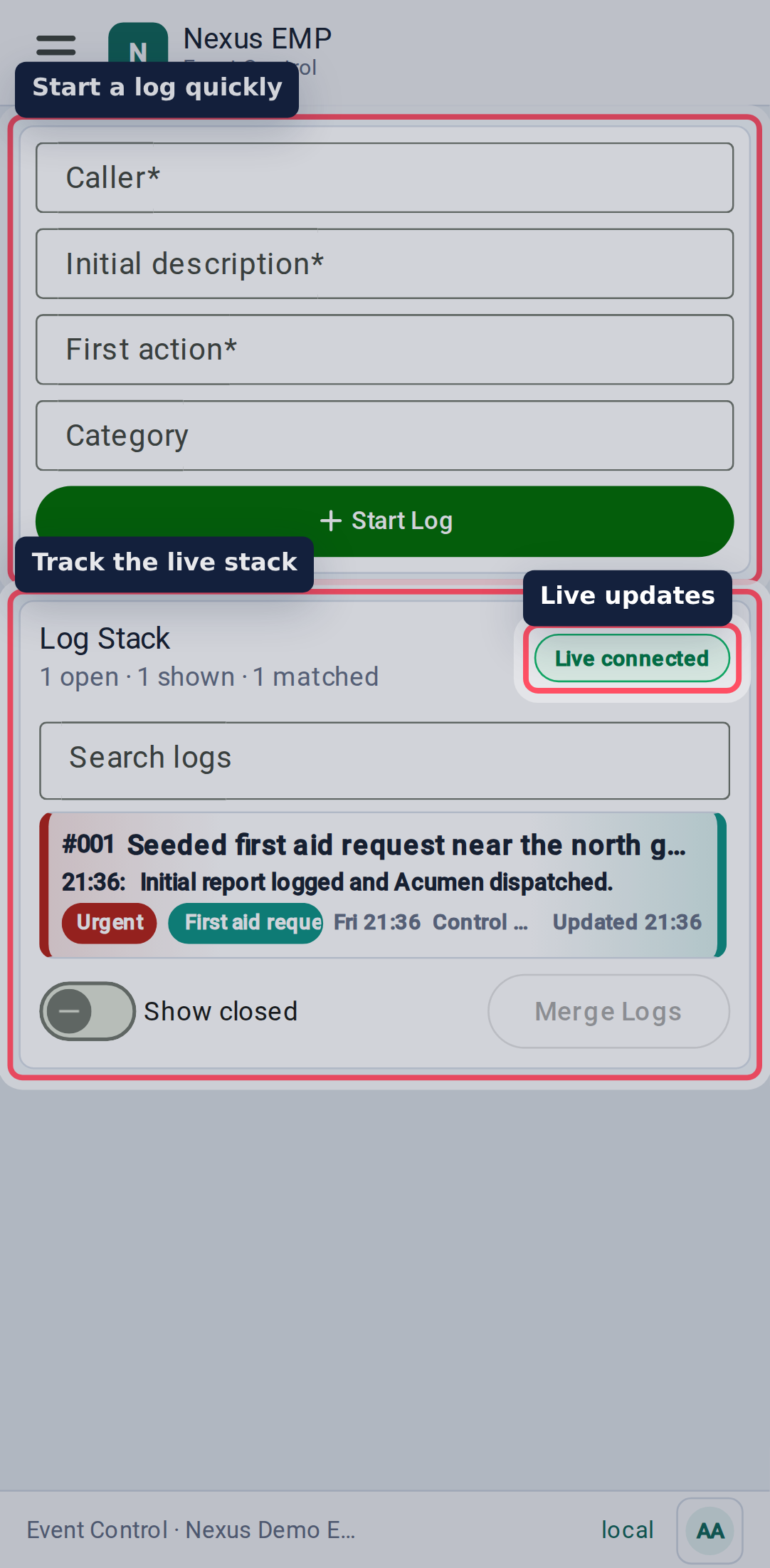
Start a log
Use the quick log form at the top of Event Control.
- Pick a category.
- Add the caller.
- Write a short title or initial description.
- Add the first action if you have it.
- Add a location when it will help the response. If Choose location is
available, use the floating map search to find a gate, zone, route, landmark,
or What3Words address. A map-label result moves and highlights the relevant
part of the map; select the exact point you want to use, then add an optional
description. A What3Words result selects its resolved point directly.
Otherwise, enter a free-form location such as
Main stage right. - Select Start Log.
After Nexus creates the log, the quick log fields clear and return to their default state ready for the next entry. If the log cannot be created, the current values remain available to correct and submit again.
Event Control shows one location control at a time. A usable Mapping integration provides the full picker, including its description field. Without one, Event Control provides the simple free-form description instead. Existing saved coordinates and descriptions are preserved if Mapping is later disabled.
The category is searchable. Type a few letters, pick the best match, and Nexus applies the category defaults such as priority and lead agency where the setup allows it.
For keyboard entry, press Enter once to select the highlighted category. Once the category is selected, press Enter again to start the log, or press Tab to add an optional location. Tab opens the Mapping location control when it is available and moves to the free-form location description otherwise. Starting to type again replaces the selected category with a fresh search.
Start the log as soon as the control room has enough information to act. A short, accurate first log is better than waiting for a perfect description.
Change event status
The current event status appears in the footer. Its colour shows the status configured for the event.
Select the current status to open the status options. Pick the next status, then use the inline confirmation button to apply it. Nexus changes the footer immediately, sends the change to other connected Event Control users, and creates an automatic log using the category configured for that status.
Work the stack
The stack is the list of logs for the event. It shows log numbers, status, category, priority, title, timing, and visible indicators such as closed state. Select a row to open the detail pane.
When Event Control is first opened, the stack shows a loading state until Nexus has loaded the event logs.
The live connection status tells you whether browser updates are connected. When it is live, updates from other users should appear without a manual refresh.
Nexus periodically refreshes the secure live connection. Live reconnecting may appear briefly during that refresh; Nexus reconnects and catches up automatically.
If an administrator changes Event Control to Read only, the stack remains available but create and edit controls are disabled. If they disable it, Nexus moves you to another available event page. Supported unsent quick-log text is kept as a recoverable draft for that event.
If the live connection is not connected, keep working but be careful before making duplicate logs. Refresh once connectivity is back if the stack looks stale.
Update a log
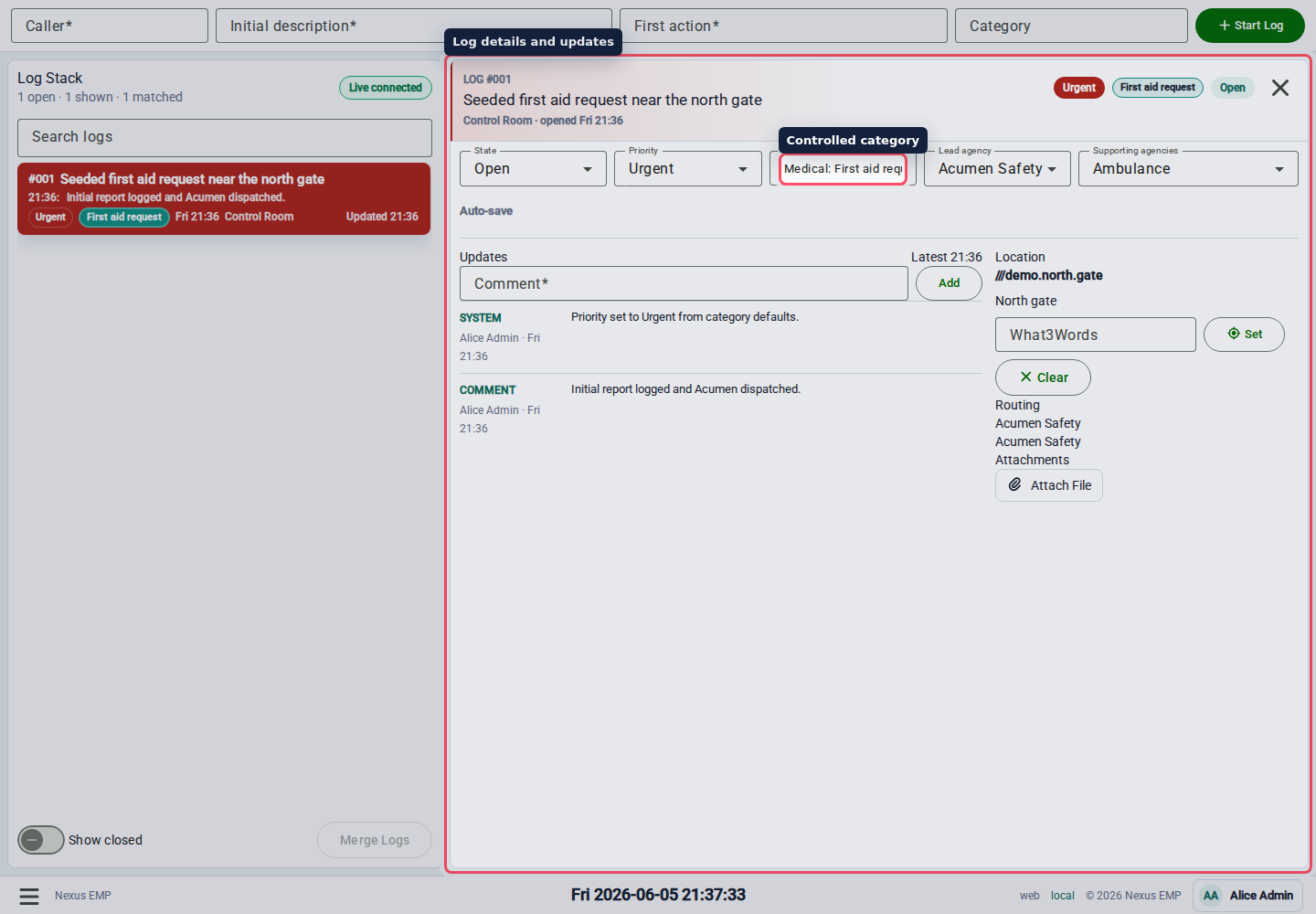
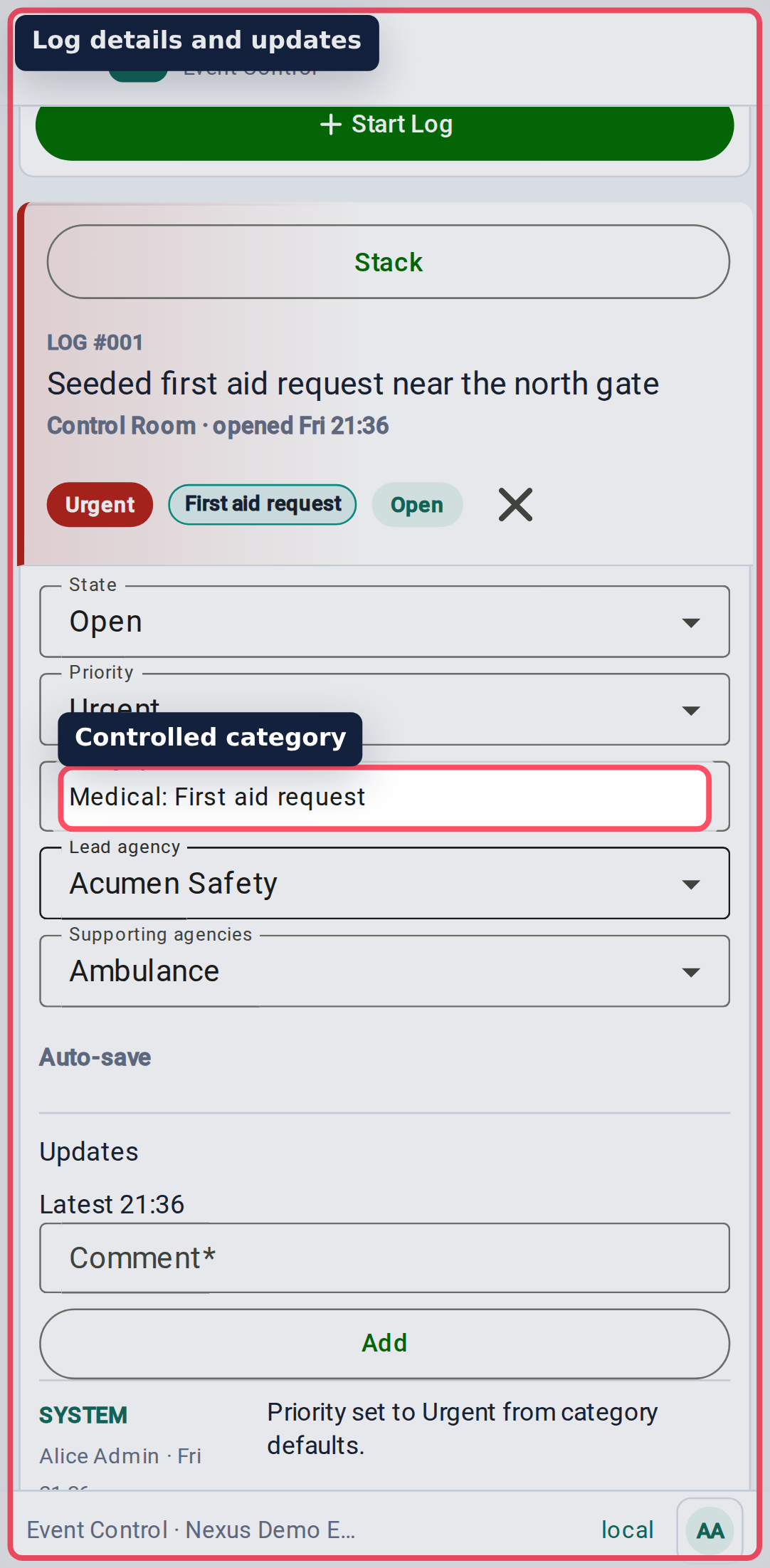
The detail pane is where the log becomes useful for handover.
- Change the State as work progresses.
- Adjust Priority and Category if the first choice was wrong.
- Set lead and additional agencies so ownership is clear.
- Add comments for actions, decisions, and updates.
- Add attachments when the log needs evidence or a related file.
- Close the log when the issue is finished.
Keep comments factual. Write what changed, who owns the next action, and any decision that someone might need later.
Print a log
Open a log and select the print action in the log header when you need a paper copy or a single-log PDF.
The print page shows the selected log as a clean report with event name, log number, opened time, state, priority, category, agencies, caller, description, location, timeline, attachment list, source details, and the printed timestamp. Select Print, then use your browser's Save as PDF option if you need a PDF copy.
Attachments are listed by filename and file details. The print view does not embed attachment content.
Attachments
Attachments are stored against the log. Where preview generation is enabled, image-style thumbnails may appear after upload processing. Use attachments for evidence, plans, photos, and other supporting files. Do not use them as the only record of an important decision; add a comment as well.
Close a log
Close a log when the situation is done and no one needs to act on it. Closed logs can still be searched and exported.
Nexus keeps closed logs available because they are often needed during handover or after-show review. Hiding them from the live stack is for focus, not deletion.